---
title: Flying Voice – Register to 3CX PBX
description: Step-by-step guide to register Flying Voice phones with 3CX PBX, including extension setup, SIP account details, and VoIP registration settings.
---
[Skip to content](https://support.kiwivoip.co.nz/flying-voice-register-to-3cx-pbx#main-content)
[More support](https://support.kiwivoip.co.nz/kb-tickets/new?hsLang=en-nz) [Submit a Support Ticket](https://support.kiwivoip.co.nz/tickets-view?hsLang=en-nz)
[-3.png?width=150&height=101&name=Kiwi-voip-2%20(1)-3.png)](https://support.kiwivoip.co.nz/?hsLang=en-nz)
Open main navigation
Close main navigation
- [More support](https://support.kiwivoip.co.nz/kb-tickets/new)
- [Submit a Support Ticket](https://support.kiwivoip.co.nz/tickets-view)
- [Email Us](mailto:support@kiwivoip.co.nz)
[Email Us](mailto:support@kiwivoip.co.nz)
Got a question? We’ve got your back.
- There are no suggestions because the search field is empty.
1. [Knowledge Base](https://support.kiwivoip.co.nz/?hsLang=en-nz)
2. [Getting Started](https://support.kiwivoip.co.nz/getting-started?hsLang=en-nz)
3. [Hardware Phones (Yealink and others)](https://support.kiwivoip.co.nz/getting-started?hsLang=en-nz#hardware-phones-yealink-and-others)
20 February 2026
# Flying Voice – Register to 3CX PBX
## Flying Voice Phone Registration Guide for 3CX PBX: Step-by-step instructions for quick and easy setup.

##### 3CX Configuration
##### This guide takes Cloud PBX as an example.
- Make sure the computer can connect to the Internet.
- Open web browser and input 3CX administrator address: [https://192.168.1.1:5001](https://192.168.1.1:5001/)
- to Enter username ( Default: admin )and password ( Default: password ) to log in the administrator page.
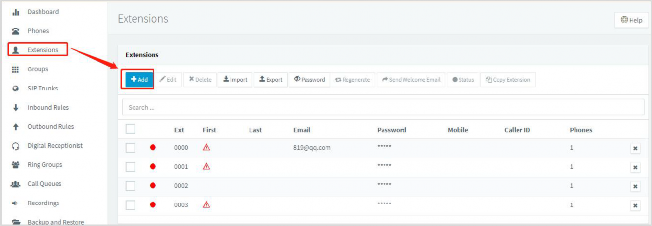
- Click “Extensions” on the left→ “Add”. Set extension and password in a general setting.
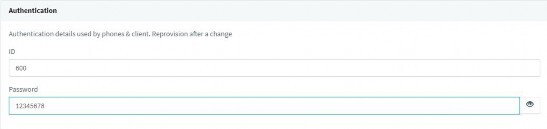
- Input the required information of Extension, First Name, Last Name, Email Address, Mobile Number, Outbound Caller ID, Authentication (ID and Password), etc. Then click the “Save” button.
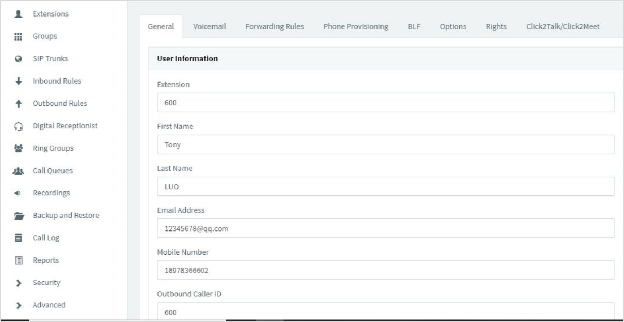
- **Extension (Required field):** The number of extensions. (Example: 600)
- **First Name:** The first name of extension user.
- **Last Name:** The last name of extension user.
- **Email Address:** The email address of user, which can be used for retrieving password, receiving voice message, event notification, etc.
- **Mobile Number:** The mobile number of user, which can be used for call transfer, event notification, etc.
- **ID** (Required field): The ID of phone, recommend to set it as the same with extension number. (Example: 600)
- **Password** (Required field): The password of phone. (Example: 12345678)
#### **1.2 Phone Configuration**
This guide takes FIP11C as an example.
1. Connect the phone to intranet and plug in power cord, then the phone will be started. It will obtain IP address from DHCP server automatically during startup. You can find the IP address information by pressing the “OK” button on phone. The IP address of the phone in this example: 192.168.20.76 The IP address of 3CX PBX: 183.46.60.18
2. Open the browser on the computer and input the IP address of the phone: [http://192.168.20.76](http://192.168.20.76/)
3. Enter username(Default: admin)and password(Default: admin)to log in the administrator page.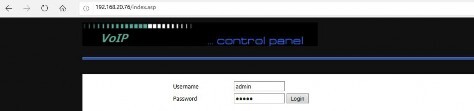
4. Click“VOIP”—“Line 1”,then set up the phone with registered info as follows: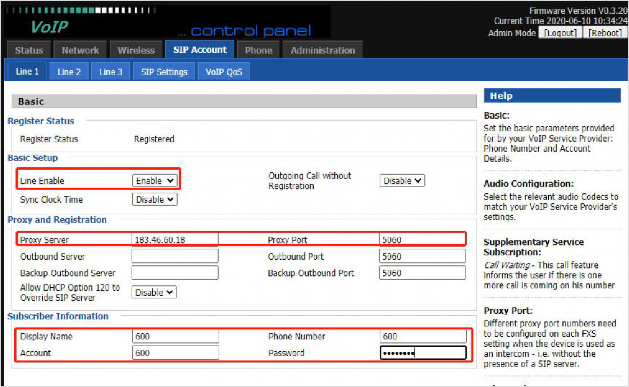
***Account will be a random number from 3CX***

- **Line Enable**(Required field): Select Enable**Proxy Server** (Required field): Input the IP address of 3CX PBX. (Example:183.46.60.18)
- **Proxy Port** (Required field): Input the registration port of 3CX PBX. (Default: 5060)
- **Display Name:** Set the label displayed on the phone display, such as extension number,
name, etc.
- **Phone Number** (Required field): Input the extension number that needs to be registered.
(Example: 600)
- **Account** (Required field): This is the 3CX ID under the phone provisioning tab.
- **Password** (Required field): Input the password of this extension, you can find the password
on this extension page of 3CX PBX.
5\. Click “Save & Apply”, the phone will be registered to 3CX PBX. You can find the registration status on the status page of 3CX PBX.
- [Getting Started](https://support.kiwivoip.co.nz/getting-started?hsLang=en-nz#main-content)
- [Simple Settings](https://support.kiwivoip.co.nz/getting-started?hsLang=en-nz#simple-settings)
- [Hardware Phones (Yealink and others)](https://support.kiwivoip.co.nz/getting-started?hsLang=en-nz#hardware-phones-yealink-and-others)
- [PBX Systems (3CX, Freepbx, etc)](https://support.kiwivoip.co.nz/getting-started?hsLang=en-nz#pbx-systems-3cx-freepbx-etc)
- [ATA's](https://support.kiwivoip.co.nz/getting-started?hsLang=en-nz#atas)
- [Billing and Admin](https://support.kiwivoip.co.nz/billing-and-admin?hsLang=en-nz#main-content)
- [Your Account](https://support.kiwivoip.co.nz/billing-and-admin?hsLang=en-nz#your-account)
- [Internet](https://support.kiwivoip.co.nz/billing-and-admin?hsLang=en-nz#internet)
- [Porting](https://support.kiwivoip.co.nz/billing-and-admin?hsLang=en-nz#porting)
- [Pricing](https://support.kiwivoip.co.nz/billing-and-admin?hsLang=en-nz#pricing)
- [Cloud PBX](https://support.kiwivoip.co.nz/cloud-pbx?hsLang=en-nz#main-content)
- [Features](https://support.kiwivoip.co.nz/cloud-pbx?hsLang=en-nz#features)
- [Inbound Calls](https://support.kiwivoip.co.nz/cloud-pbx?hsLang=en-nz#inbound-calls)
- [Outbound Calls](https://support.kiwivoip.co.nz/cloud-pbx?hsLang=en-nz#outbound-calls)
- [Advanced Cloud PBX Settings](https://support.kiwivoip.co.nz/cloud-pbx?hsLang=en-nz#advanced-cloud-pbx-settings)
- [Cloud PBX Preferences](https://support.kiwivoip.co.nz/cloud-pbx?hsLang=en-nz#cloud-pbx-preferences)
- [Trunks](https://support.kiwivoip.co.nz/cloud-pbx?hsLang=en-nz#trunks)
- [Deskphones and Softphones Setup](https://support.kiwivoip.co.nz/deskphones-and-softphones-setup?hsLang=en-nz#main-content)
- [Yealink W Series](https://support.kiwivoip.co.nz/deskphones-and-softphones-setup?hsLang=en-nz#yealink-w-series)
- [Cisco SPA](https://support.kiwivoip.co.nz/deskphones-and-softphones-setup?hsLang=en-nz#cisco-spa)
- [Yeastar TA](https://support.kiwivoip.co.nz/deskphones-and-softphones-setup?hsLang=en-nz#yeastar-ta)
- [ATA's](https://support.kiwivoip.co.nz/deskphones-and-softphones-setup?hsLang=en-nz#atas)
- [3CX](https://support.kiwivoip.co.nz/3cx?hsLang=en-nz#main-content)
- [Guides](https://support.kiwivoip.co.nz/3cx?hsLang=en-nz#guides)
- [Hardware Issues](https://support.kiwivoip.co.nz/3cx?hsLang=en-nz#hardware-issues)
- [Trunk / Line Setup](https://support.kiwivoip.co.nz/3cx?hsLang=en-nz#trunk-line-setup)
- [Mobile](https://support.kiwivoip.co.nz/mobile?hsLang=en-nz#main-content)
- [Mobile Sims and Phones](https://support.kiwivoip.co.nz/mobile?hsLang=en-nz#mobile-sims-and-phones)
- [Mobile Plans](https://support.kiwivoip.co.nz/mobile?hsLang=en-nz#mobile-plans)
- [How to get going with Kiwi VoIP Mobile](https://support.kiwivoip.co.nz/mobile?hsLang=en-nz#how-to-get-going-with-kiwi-voip-mobile)
- [Internet](https://support.kiwivoip.co.nz/internet?hsLang=en-nz#main-content)
- [Setting Up](https://support.kiwivoip.co.nz/internet?hsLang=en-nz#setting-up)
- [Help my internet is down](https://support.kiwivoip.co.nz/internet?hsLang=en-nz#help-my-internet-is-down)
- [Files and Folders](https://support.kiwivoip.co.nz/files-and-folders?hsLang=en-nz#main-content)
- [Shared Files](https://support.kiwivoip.co.nz/files-and-folders?hsLang=en-nz#shared-files)
- [General](https://support.kiwivoip.co.nz/general?hsLang=en-nz#main-content)
- [FAQ](https://support.kiwivoip.co.nz/general?hsLang=en-nz#faq)
- [Security](https://support.kiwivoip.co.nz/general?hsLang=en-nz#security)
- [Misc Guides / Help / Problems](https://support.kiwivoip.co.nz/general?hsLang=en-nz#misc-guides-help-problems)
- [Tech Guides (non VoIP)](https://support.kiwivoip.co.nz/tech-guides-non-voip?hsLang=en-nz#main-content)
- [Unifi](https://support.kiwivoip.co.nz/tech-guides-non-voip?hsLang=en-nz#unifi)
- [Router Configuration](https://support.kiwivoip.co.nz/router-configuration?hsLang=en-nz)
[-3.png?width=150&height=101&name=Kiwi-voip-2%20(1)-3.png "Kiwi VoIP Logo")](https://www.kiwivoip.co.nz)
##### [Terms & Conditions](https://www.kiwivoip.co.nz/terms-conditions) | [Mobile Terms & Conditions](https://www.kiwivoip.co.nz/mobile-terms-conditions)
[mailto:helpdesk@kiwivoip.co.nz](mailto:helpdesk@kiwivoip.co.nz)
Copyright © 2025, Kiwi VoIP