---
title: Gigaset VoIP Phones
description: Gigaset setup on Kiwi VoIP
---
[Skip to content](https://support.kiwivoip.co.nz/gigaset-voip-phones#main-content)
[More support](https://support.kiwivoip.co.nz/kb-tickets/new?hsLang=en-nz) [Submit a Support Ticket](https://support.kiwivoip.co.nz/tickets-view?hsLang=en-nz)
[](https://support.kiwivoip.co.nz/?hsLang=en-nz)
Open main navigation
Close main navigation
- [More support](https://support.kiwivoip.co.nz/kb-tickets/new)
- [Submit a Support Ticket](https://support.kiwivoip.co.nz/tickets-view)
- [Email Us](mailto:support@kiwivoip.co.nz)
[Email Us](mailto:support@kiwivoip.co.nz)
Got a question? We’ve got your back.
- There are no suggestions because the search field is empty.
1. [Knowledge Base](https://support.kiwivoip.co.nz/?hsLang=en-nz)
2. [Getting Started](https://support.kiwivoip.co.nz/getting-started?hsLang=en-nz)
3. [Hardware Phones (Yealink and others)](https://support.kiwivoip.co.nz/getting-started?hsLang=en-nz#hardware-phones-yealink-and-others)
16 July 2025
# Gigaset VoIP Phones
## Configuring your Gigaset VoIP Phone for Kiwi VoIP.
Remove the contents of your Gigaset box and connect them to your router and power source. You will notice that all the required cables are in the box, including the ethernet cable for connectivity between your router/switch and the device’s base unit.
Below are detailed instructions on configuring the Gigaset series to work with Kiwi VoIP’s service:
**1. Reset your Gigaset to factory default settings**
If you purchase a second hand Gigaset device or one that has been setup to work with a particular carrier then the safest bet is to reset the settings to the factory defaults so that you start with a clean slate and can be sure that some previously entered setting is not causing you a problem. To reset the Gigaset to factory defaults follow these steps:
Remove all connections from the base unit
Hold the blue button on the front of the base unit
Continue to hold the front button whilst inserting the power cable to the rear of the unit
Wait 10 seconds then release your finger from the button
The base station has now been reset
**2. Get access to your Gigaset web interface**
Plug in Ethernet cable to router and wait for several seconds
Navigate to [http://www.gigaset-config.com/](http://www.gigaset-config.com/)
Wait until your device is detected and you are forwarded to the login page
Enter your PIN number (the default is 0000)
You should now see the Gigaset Web Interface
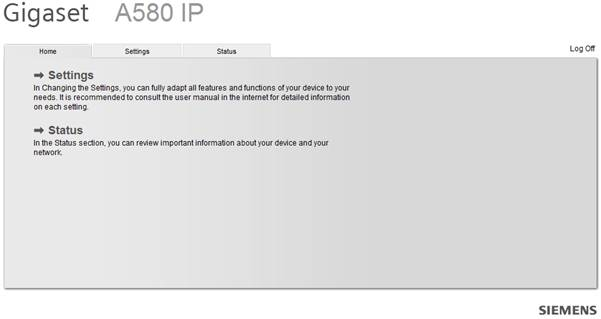
Select ‘Telephony’ on the left hand side of the page, you will now be shown a list of connections
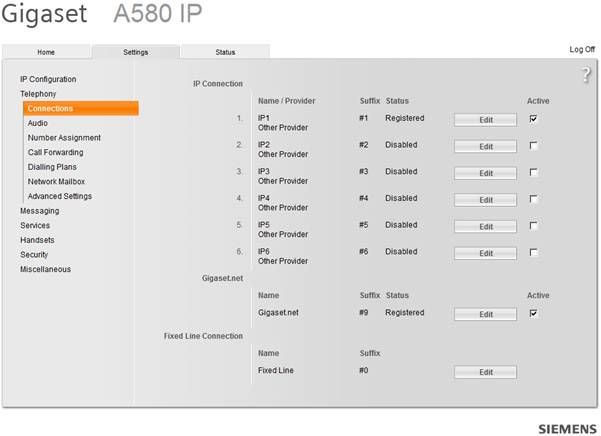
add more they can be done in the same fashion.
Select edit on line 1 and you will be shown a configuration page for that line
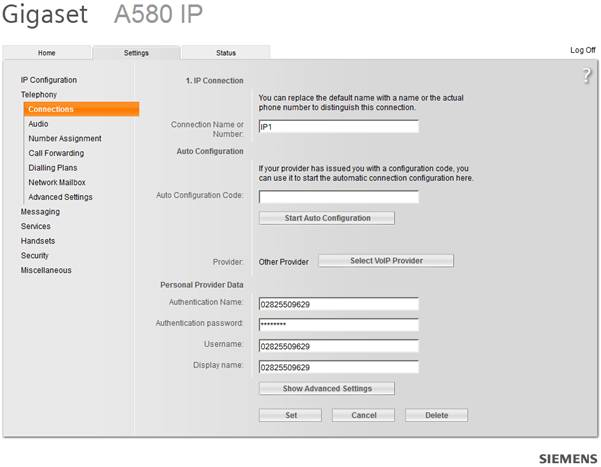
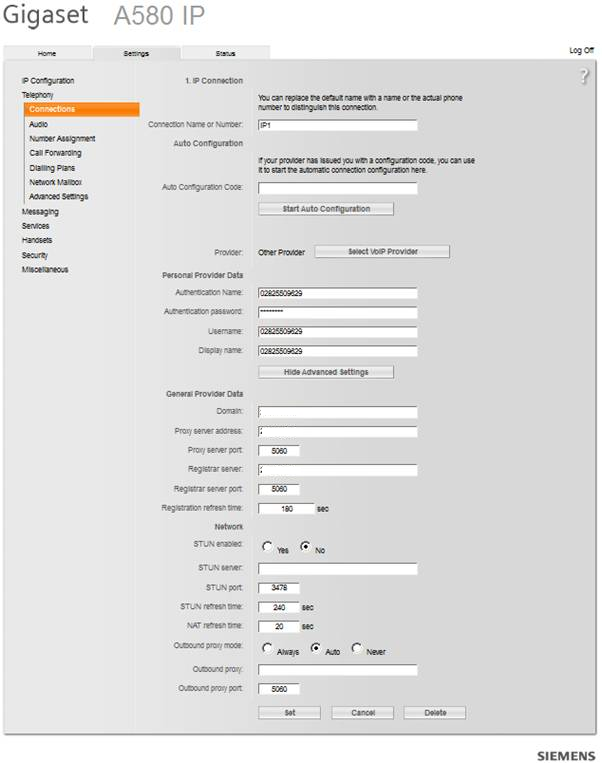
Enter the following information in the fields:Authentication Name: The phone number you want set to this line
Authentication Password: Your Kiwi VoIP password for this phone number
Username: The phone number you want set to this line
Display Name: The phone number you want set to this line
Domain: sip.kiwivoip.co.nz
Proxy Server Address: sip.kiwivoip.co.nz
Proxy Server Port: 5060
Registrar Server: sip.kiwivoip.co.nz
Registrar Server Port: 5060
Registration Refresh Time: 180
STUN Enabled: No
STUN Server: stun.3cx.com
STUN Port: 3478
STUN Refresh Time: 240
NAT Refresh Time: 20
Outbound Proxy Mode: Auto
Outbound Proxy: sip.kiwivoip.co.nz
Outbound Proxy Port: 5060
Once finished click set and reboot the unit.
Done!
##### Troubleshooting Tips
If you are still having problems getting your A580IP to register with Kiwi VoIP then you can try disabling or enabling the STUN settings.
Another thing you can try is changing your SIP Port from ‘5060’ to ‘50600’ (and 5061 to 50610 on line 2 if required).
If you are still having problems connecting to Kiwi VoIP then email us at support@kiwivoip.co.nz.
- [Getting Started](https://support.kiwivoip.co.nz/getting-started?hsLang=en-nz#main-content)
- [Simple Settings](https://support.kiwivoip.co.nz/getting-started?hsLang=en-nz#simple-settings)
- [Hardware Phones (Yealink and others)](https://support.kiwivoip.co.nz/getting-started?hsLang=en-nz#hardware-phones-yealink-and-others)
- [PBX Systems (3CX, Freepbx, etc)](https://support.kiwivoip.co.nz/getting-started?hsLang=en-nz#pbx-systems-3cx-freepbx-etc)
- [ATA's](https://support.kiwivoip.co.nz/getting-started?hsLang=en-nz#atas)
- [Billing and Admin](https://support.kiwivoip.co.nz/billing-and-admin?hsLang=en-nz#main-content)
- [Your Account](https://support.kiwivoip.co.nz/billing-and-admin?hsLang=en-nz#your-account)
- [Internet](https://support.kiwivoip.co.nz/billing-and-admin?hsLang=en-nz#internet)
- [Porting](https://support.kiwivoip.co.nz/billing-and-admin?hsLang=en-nz#porting)
- [Pricing](https://support.kiwivoip.co.nz/billing-and-admin?hsLang=en-nz#pricing)
- [Cloud PBX](https://support.kiwivoip.co.nz/cloud-pbx?hsLang=en-nz#main-content)
- [Features](https://support.kiwivoip.co.nz/cloud-pbx?hsLang=en-nz#features)
- [Inbound Calls](https://support.kiwivoip.co.nz/cloud-pbx?hsLang=en-nz#inbound-calls)
- [Outbound Calls](https://support.kiwivoip.co.nz/cloud-pbx?hsLang=en-nz#outbound-calls)
- [Advanced Cloud PBX Settings](https://support.kiwivoip.co.nz/cloud-pbx?hsLang=en-nz#advanced-cloud-pbx-settings)
- [Cloud PBX Preferences](https://support.kiwivoip.co.nz/cloud-pbx?hsLang=en-nz#cloud-pbx-preferences)
- [Trunks](https://support.kiwivoip.co.nz/cloud-pbx?hsLang=en-nz#trunks)
- [Deskphones and Softphones Setup](https://support.kiwivoip.co.nz/deskphones-and-softphones-setup?hsLang=en-nz#main-content)
- [Yealink W Series](https://support.kiwivoip.co.nz/deskphones-and-softphones-setup?hsLang=en-nz#yealink-w-series)
- [Cisco SPA](https://support.kiwivoip.co.nz/deskphones-and-softphones-setup?hsLang=en-nz#cisco-spa)
- [Yeastar TA](https://support.kiwivoip.co.nz/deskphones-and-softphones-setup?hsLang=en-nz#yeastar-ta)
- [ATA's](https://support.kiwivoip.co.nz/deskphones-and-softphones-setup?hsLang=en-nz#atas)
- [3CX](https://support.kiwivoip.co.nz/3cx?hsLang=en-nz#main-content)
- [Guides](https://support.kiwivoip.co.nz/3cx?hsLang=en-nz#guides)
- [Hardware Issues](https://support.kiwivoip.co.nz/3cx?hsLang=en-nz#hardware-issues)
- [Trunk / Line Setup](https://support.kiwivoip.co.nz/3cx?hsLang=en-nz#trunk-line-setup)
- [Mobile](https://support.kiwivoip.co.nz/mobile?hsLang=en-nz#main-content)
- [Mobile Sims and Phones](https://support.kiwivoip.co.nz/mobile?hsLang=en-nz#mobile-sims-and-phones)
- [Mobile Plans](https://support.kiwivoip.co.nz/mobile?hsLang=en-nz#mobile-plans)
- [How to get going with Kiwi VoIP Mobile](https://support.kiwivoip.co.nz/mobile?hsLang=en-nz#how-to-get-going-with-kiwi-voip-mobile)
- [Internet](https://support.kiwivoip.co.nz/internet?hsLang=en-nz#main-content)
- [Setting Up](https://support.kiwivoip.co.nz/internet?hsLang=en-nz#setting-up)
- [Help my internet is down](https://support.kiwivoip.co.nz/internet?hsLang=en-nz#help-my-internet-is-down)
- [Files and Folders](https://support.kiwivoip.co.nz/files-and-folders?hsLang=en-nz#main-content)
- [Shared Files](https://support.kiwivoip.co.nz/files-and-folders?hsLang=en-nz#shared-files)
- [General](https://support.kiwivoip.co.nz/general?hsLang=en-nz#main-content)
- [FAQ](https://support.kiwivoip.co.nz/general?hsLang=en-nz#faq)
- [Security](https://support.kiwivoip.co.nz/general?hsLang=en-nz#security)
- [Misc Guides / Help / Problems](https://support.kiwivoip.co.nz/general?hsLang=en-nz#misc-guides-help-problems)
- [Tech Guides (non VoIP)](https://support.kiwivoip.co.nz/tech-guides-non-voip?hsLang=en-nz#main-content)
- [Unifi](https://support.kiwivoip.co.nz/tech-guides-non-voip?hsLang=en-nz#unifi)
- [Router Configuration](https://support.kiwivoip.co.nz/router-configuration?hsLang=en-nz)
[](https://www.kiwivoip.co.nz)
##### [Terms & Conditions](https://www.kiwivoip.co.nz/terms-conditions) | [Mobile Terms & Conditions](https://www.kiwivoip.co.nz/mobile-terms-conditions)
[mailto:helpdesk@kiwivoip.co.nz](mailto:helpdesk@kiwivoip.co.nz)
Copyright © 2025, Kiwi VoIP